Getting Started
The purpose of this document is to assist new or existing customers in the setup and initial configuration of their CX contact centre on Amazon Connect.
Further assistance can be requested if required by emailing sales@neonnow.ai.
The installation process can be done as quick as 10 minutes, however if this is your first time, allow at least an hour to work systematically through this guide.
This guide assumes you have already signed up in the NeonNow Admin app and have an active organisation. It walks through creating a CX contact centre against your existing Amazon Connect instance.
Audience
This guide requires general AWS Console familiarity, and some level of experience with Amazon Connect will speed up the onboarding. Specific links have been provided in this guide to existing Amazon Connect help documentation. There is no specific coding, AWS SDK, AWS CLI or other skills required.
An understanding of the principles of a Contact Centre is assumed.
Prerequisites
The Quick Start guide assumes that you have already established the following:
- AWS account signed-up and established
- This is the account that houses the Amazon Connect instance that CX will be integrated with.
- AWS Console Access
- The AWS Console user used for integration must have the following permissions:
- cloudformation:CreateStack
- iam:CreateRole
- iam:AttachUserPolicy
- However, to manage Connect and other standard configuration, other IAM permissions will be required, but are covered by standard AWS documentation here
- Note: we strongly recommend you not to use AWS root credentials for this installation, as part of good AWS security practice.
- The AWS Console user used for integration must have the following permissions:
- An Amazon Connect instance setup, following An Amazon Connect instance setup here, in the above AWS account and configured with:
- A working contact flow - For more information visit: Create a flow here
- A claimed phone number is associated with the contact flow. For more information visit: Assign the contact flow to the phone number
- An agent already setup and configured with a routing profile
- For more info visit: Set up routing here, Set up agents here
- Customer Profiles either NOT enabled (CX will enable), OR if enabled, ensure you have set a domain name of
amazon-connect-connect-instancealias, for exampleamazon-connect-myinstance123 - To support CX MFA, a valid email address and/or phone number must be set against user in Amazon Connect
If your customer profiles domain does not match the above, you may receive an error when trying to create your CX contact centre.
-
Add Agent Statuses in Amazon Connect
- Add custom agent status here
-
Are your agents making outbound calls? Outbound requirements:
- Default Outbound Queue - The routing profile of the agent MUST have a default outbound queue configured. In addition, the outbound queue must have a phone number assigned.
- Security Permissions per below (Note these two permissions are included in the default Agent and Admin security profiles in Amazon Connect.)
- CCP: Access CCP
- CCP: Outbound permissions
-
Using queue/agent transfers? - The following default transfer Contact Flows must exist: (Without these Contact Flows, agent/queue transfers will fail, and an error will be shown to your agents)
- Default queue transfer
- Default agent transfer
- Amazon Connect Service Quotas
- Quick Connects - CX uses dynamic quick connects to facilitate agent and queue transfers. Each transfer between an agent and another agent/queue uses a single quick connect to form a reusable transfer. Because of this, we recommend increasing your quick connect limit to the number of agents + number of queues.
-
Single Sign On (Optional): If you are planning on signing in to your contact centre with a single sign on (such as using Azure Active Directory), you will need to have created your Amazon Connect instance with it enabled. When you have created your CX contact centre, you will need to go into customisation and enable SSO with the login URL. For additional information on configuring SSO visit Configuring Single Sign On
-
End User and Network Pre-Requisites.
-
Please read and understand the FAQs located here - specifically:
-
Understand all Billable Services within your AWS account. Please see here for a complete breakdown of this information.
AWS Customer Account Resources
To integrate CX with your Amazon Connect AWS account, the onboarding wizard will create an AWS IAM role, that will be used call Amazon Connect APIs and setup service orchestration. The role will be named uniqueID-client-apiExeRole.
The role will be set up with the following policy by default:
- connect:* (Connect) - used to manage Amazon Connect APIs, such as users, Queue Metrics, quick connects etc.
- profile:*  (Connect customer profiles) - used to manage Amazon Connect customer profiles
- quicksight:* (Amazon Quicksight) - used to integrate with the Quicksight for Reporting embedding
- ses:* (Amazon SES) - used to orchestration SES for the <ProductName /> Email platform
- s3:* (Amazon S3) - used for storage of emails content
- kms:* (AWS Key Management Service) - used for securing Customer profiles with custom keys
- bedrock:* (Bedrock) - used for generative AI features of <ProductName />.
It is possible to restrict this policy further down to individual actions & resources, however this will differ, depending on the features you have enabled in your CX instance.
Please refer to the Admin FAQs here for a sample role policy that can be used.
The role grants the CX AWS SaaS account access to assume this role and orchestrate those services. The role is secured by AWS account ID and also used an External ID.
Here is a specific list of resources deployed to your AWS account, broken down by Feature:
- CX Base build
- IAM role, as detailed above
- CX URL will be added as new Amazon Connect origin
- Customer Profiles domain and KMS cert (if required)
- CX Email Feature
- AWS SES, including domain & email verifications, email rule sets
- AWS S3 for emails and attachments
- CX Insights (reporting)
- Kinesis Data Streams (utilised but CX will not orchestrate creation)
- AWS Lambda for Amazon Connect real-time metrics
- S3 bucket for real-time for Amazon Connect real-time metrics results
- S3 Buckets for Athena query Storage
- S3 Buckets for CTR and Agent Stream records
- AWS Glue Tables
- AWS Athena for S3/Glue queries
- Amazon Quicksight for BI, including service users for report embedding.
Deployment Options
CX can be deployed to a number of regions, including:
- Sydney, Australia (ap-southeast-2)
- Oregon, United States of America (us-west-2)
- North Virginia, United States of America (us-east-1)
- London, United Kingdom (eu-west-2)
Region selection is chosen within the onboarding wizard. Note there is currently no provision for multi-region capability.
All services used within the solution utilise multi-AZ capability. This occurs out of the box due to the nature of the AWS Services used. This provides protection against localised data-centre and Availability Zone failures within AWS.
Architecture
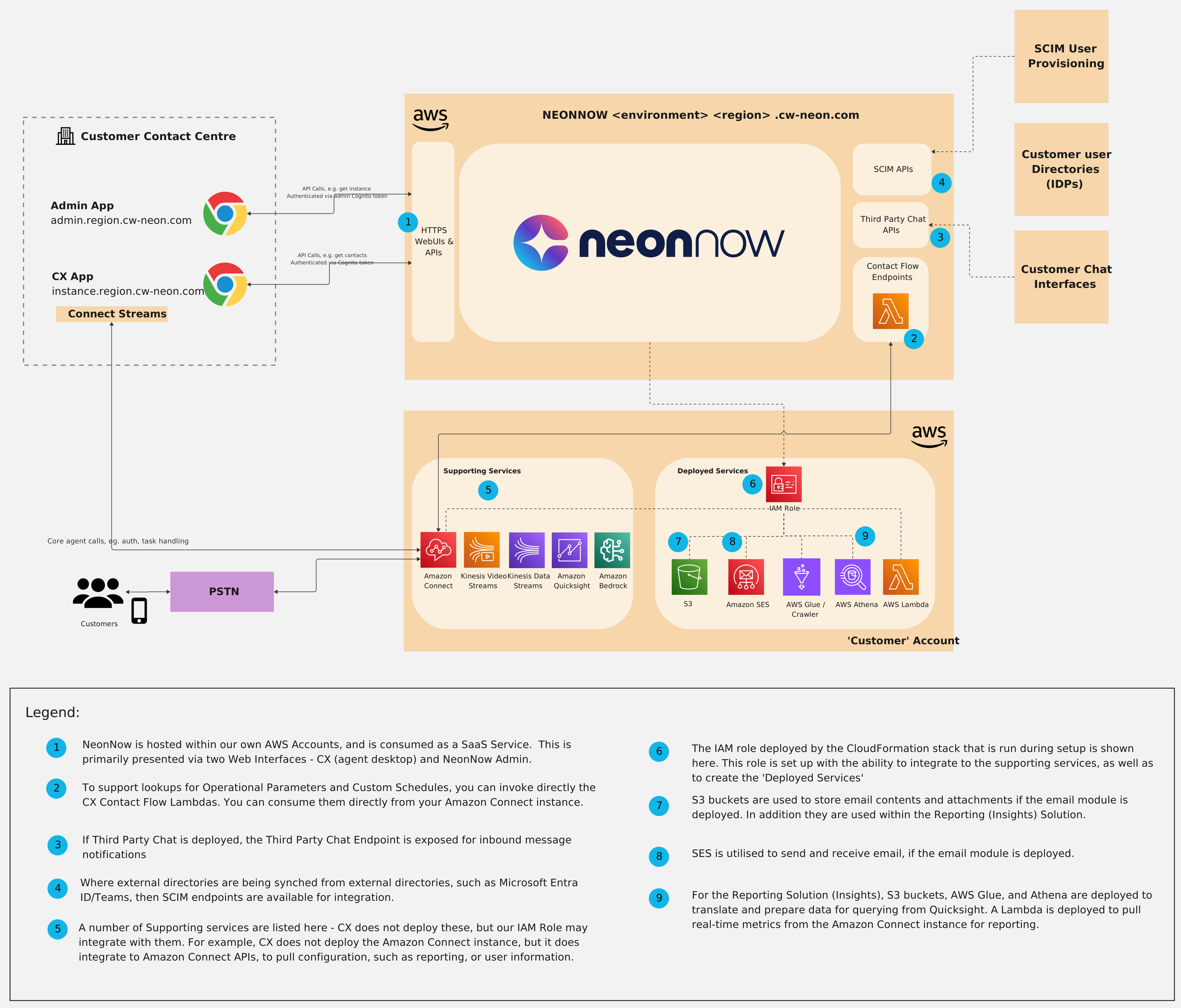
The following diagram shows how CX integrates with your AWS account and your Amazon Connect instance.
Networking Setup
The following table defines connectivity required by the CX agent workspace/softphone, as well as the CX admin portal.
Local and Network corporate firewalls should allow all domains on below list, on the ports defined. Corporate web accelerators and proxies should be used with caution as these can cause unpredictable delays, especially to Real-Time audio traffic.
Please visit Amazon Connect's network page here for network requirements for Amazon Connect.
For CX, the following is also required:
| Domain/URL allow list | AWS Region | Ports | Direction | Traffic |
|---|---|---|---|---|
| *.cw-neon.com | Region-specific sub-domains can be utilised, please refer to your account manager to for specific region sub-domain | 443 (TCP) | OUTBOUND | SEND/RECEIVE |
NB: Each agent workspace will utilise approximately 100 Kbps bandwidth per connected workstation.
Test Core Features
Note: The onboarding flow automatically white-listed the CX Domain within the AWS Console.
Open the CX Agent Workspace URL created for your organisation (e.g. https://acme-inc.{region}.cw-neon.com) in a supported browser such as Google Chrome.
Select 'Sign In With Amazon Connect', or 'Sign In With Your Provider' - this should open Amazon Connect CCP in a new popup window. If the Amazon Connect CCP window does not pop up, make sure the browser's popup blocker is not blocking your CX URL.
Provide your Amazon Connect credentials on the Amazon Connect CCP popup window and wait for the CCP screen to close itself after the successful authentication.
If MFA is enabled, you will then be prompted to enter an MFA token sent to your user's email address or mobile phone number. Note, if an email address or Phone number isn't set up, you will receive an error.
You also need to give Microphone access to CX to accept inbound/outbound calls.
Note: You must use the same Amazon Connect user that you provided when creating the CX contact centre.
Troubleshooting Issues
If you are having problems, please see our Agent FAQs which provides guidance to common problems.
Agent Status
From the top right corner, select Available from the status list.
Inbound Call
Use your cell phone or landline to dial the Amazon Connect number that is associated with your test contact flow, which should transfer the call to a queue where you are a member.
Ensure you are in available status; you should see an incoming call alert appearing from the right corner of CX.
Click on the green answer button, and you should be connected to the caller.
Once connected, you will see information about the call, such as the caller's phone number, queue name, call timer, wrap-up code, interaction code, and the core telephony functionality.
Note: You can configure wrap-up codes from the CX Admin app; however, they are not required for basic telephony testing with CX.
Please feel free to try various CX features available during the call, such as transfer, hold, mute, wrap-up codes, interaction notes, etc.
Click on the red button to disconnect the call.
After Call Work
You are now in the ACW (After Call Work) mode (if configured in the CX admin app).
Review the info and click on the red tick button.
Outbound Call
Next, let's try an outbound call.
You will need a default outbound queue to make outbound calls; check Outbound requirements in the Prerequisites for more information.
From the top right corner, click on the Directory icon to open CX Directory in a popup window within the CX app.
Click on the Dialpad tab and type the number to dial in the phone number field.
Click on the green call button to initiate the outbound call.
Add CX Users
Login into your Amazon Connect Admin account.
From the menu on the left, go to Users > User management > Add new users.
Fill in the new user info and assign the necessary routing and security profiles, then click Save.
Login into the CX application using the URL created for your organisation (e.g. https://acme-inc.{region}.cw-neon.com) with the Amazon Connect admin user credentials you provided during the CX setup.
Once logged into CX, from the menu on the left, go to Settings > Users. The new user you just created should appear in the users list.
Select the new user by clicking the checkbox before the user's name, then click the + button on the top right of the Users page.
Click on the Role dropdown and select either Agent or Admin from the list and click Save.
The "CX User" column will now show "Yes" for the new user, indicating the Amazon Connect user is now a CX user.
Modify CX Features
Login to CX Admin using the admin URL (e.g. https://admin.{region}.cw-neon.com).
Click on your CX instance name and select Customise to configure your CX features.
Modify Call Flows
A flow defines how a customer experiences your contact center from start to finish. At the most basic level, flows enable you to customize your IVR (interactive voice response) system.
For example, you can give customers a set of menu options and route customers to agents based on what they enter on their phone. Although with Amazon Connect, flows are significantly more powerful than that: you can create dynamic, personalized flows that interact with other AWS services.
Please visit the following link for more details: connect contact flows.
Decommission a CX Contact Centre
To fully decommission AWS resources deployed to your account (deployment role), log into CloudFormation and carry out the following steps:
- Find the CloudFormation service role stack deployed earlier — the name will be in the format
uniqueID-client-apiExeRole. - Select this stack using the radio button and click Delete.
- This will remove the local role from your AWS Account.
To unsubscribe from CX entirely, see the platform-level cancellation flow in the CX Admin app.